Short answer: 24. On 9 October 2026 we read eBay UK's "Adding pictures to your listings" help page and its Picture policy, and every eBay figure in this post comes from those two pages. Neither page mentions a free photo allowance or a fee for adding photos.
The short answer: how many photos eBay allows
On the date we checked, the help page said:
- Up to 24 pictures per listing.
- The uploader takes images up to 12MB each, in JPEG, PNG, GIF, TIFF, BMP, WEBP, HEIC or AVIF format.
- eBay keeps copies of your photos, and they stay in your completed listings for up to 90 days.
The Picture policy adds one requirement: every listing must include at least one photo that is 500 pixels on its longest side. A listing can have one photo or twenty-four. eBay's own advice is to use more than one.
Why you will see 12, 24 and 40 quoted
Search for this and the top results disagree. That is why we went to eBay's own pages.
40 comes from sellers on Reddit and from a valueaddedresource.net report in April 2026. On 9 October 2026 eBay's help page still said 24, so we cannot confirm 40. If your listing form ever shows more than 24 slots, go by the form. Until eBay's help page changes, treat 40 as something sellers have reported.
12 free appears on third-party sites. Neither eBay page we read mentions a free allowance or a charge for photos, so we could not confirm it.
8 to 15 is best comes from a third-party site that gives no source. We found no evidence about how the number of photos affects sales, so we do not give a figure for it.
The minimum size and the rules that matter more than the count
The two pages describe size slightly differently. The help page asks for a minimum of 500 x 500 pixels and recommends images of about 1600 x 1600. The Picture policy says at least 500 pixels on the longest side. A square photo of about 1600 pixels meets both.
The Picture policy also lists what is not allowed. These rules apply to every photo in a listing, not only the first:
- photos that do not accurately represent the item
- placeholder images used to convey messages
- stock photos for used, damaged or defective items
- added borders
- added text, artwork or marketing material
- watermarks of any type, including ownership marks
The help page also says your main photo appears in search results and should show the whole item face-on. If one of your photos breaks a rule, it does not matter how many you uploaded.
A gallery plan: what each photo slot should show
Say you have one good photo and 24 empty slots. eBay's own tips suggest several angles, close-ups of any flaws and a coin or ruler for scale. That gives this order:
- Main photo. The whole item, face-on, on a plain background, with no text or border. Keep it real. Our white background guide explains how to set this up at home.
- A second angle. A real photo of the side or three-quarter view.
- Back or underside. A real photo.
- Labels, tags and markings. A plain close-up you can read. This one must stay a real photo.
- Flaws. Every scratch, chip or worn patch, photographed as it is.
- Measurements. The item next to a ruler or tape measure.
- Scale. The item in a hand or beside something familiar. A real photo works best here.
- In use. A styled scene can go here: the item on a desk, a shelf or a kitchen table. More ideas are in our lifestyle product photos guide.
- A second setting. Another scene, if it suits the item.
- What's in the box. A real photo of everything the buyer will receive.
After slot 10, add more real detail shots, such as other angles, textures, ports and stitching. If you run out of new things to show, stop there. A repeated or padded photo tells the buyer nothing.
Where a reimagined scene helps, and where it does not
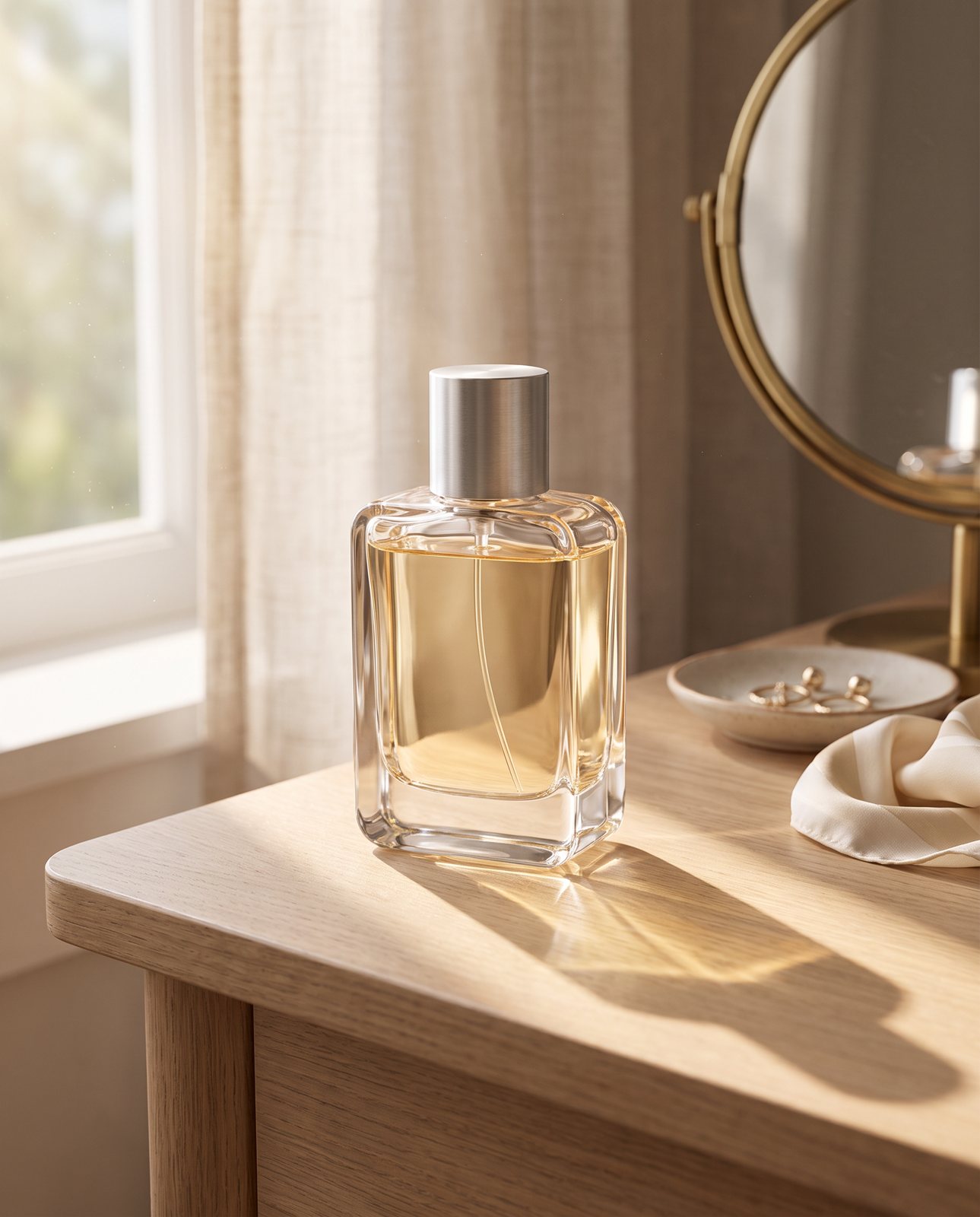
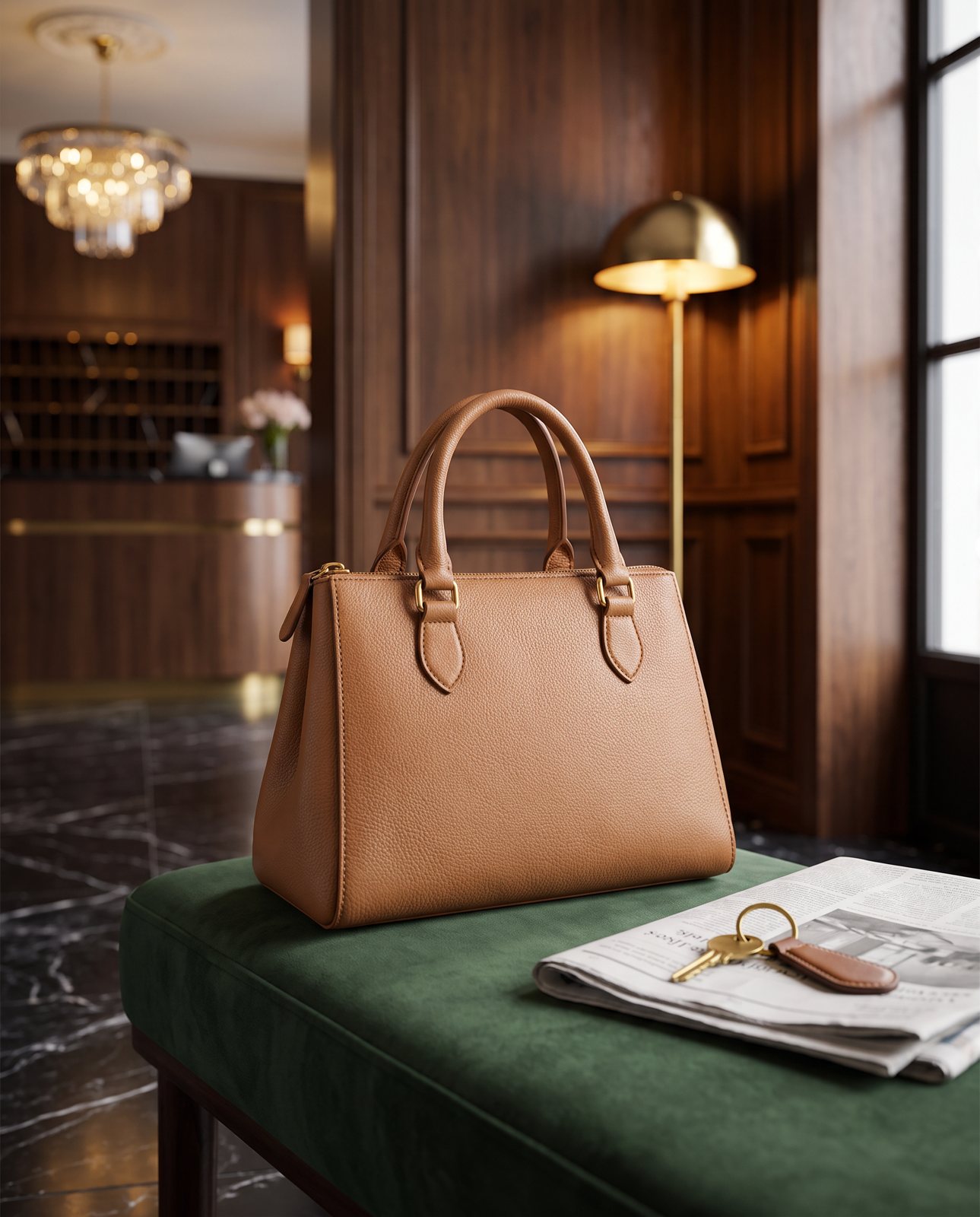
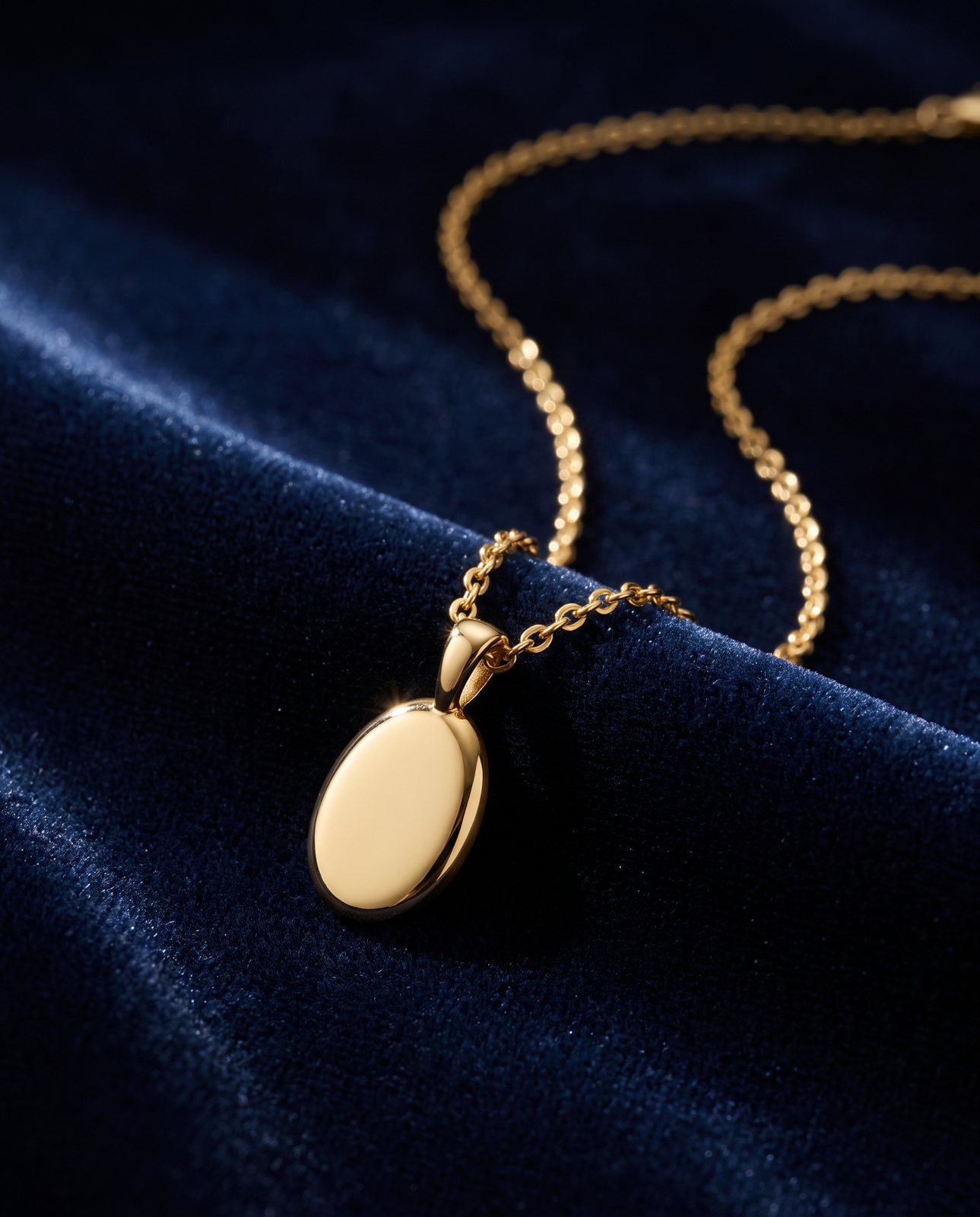
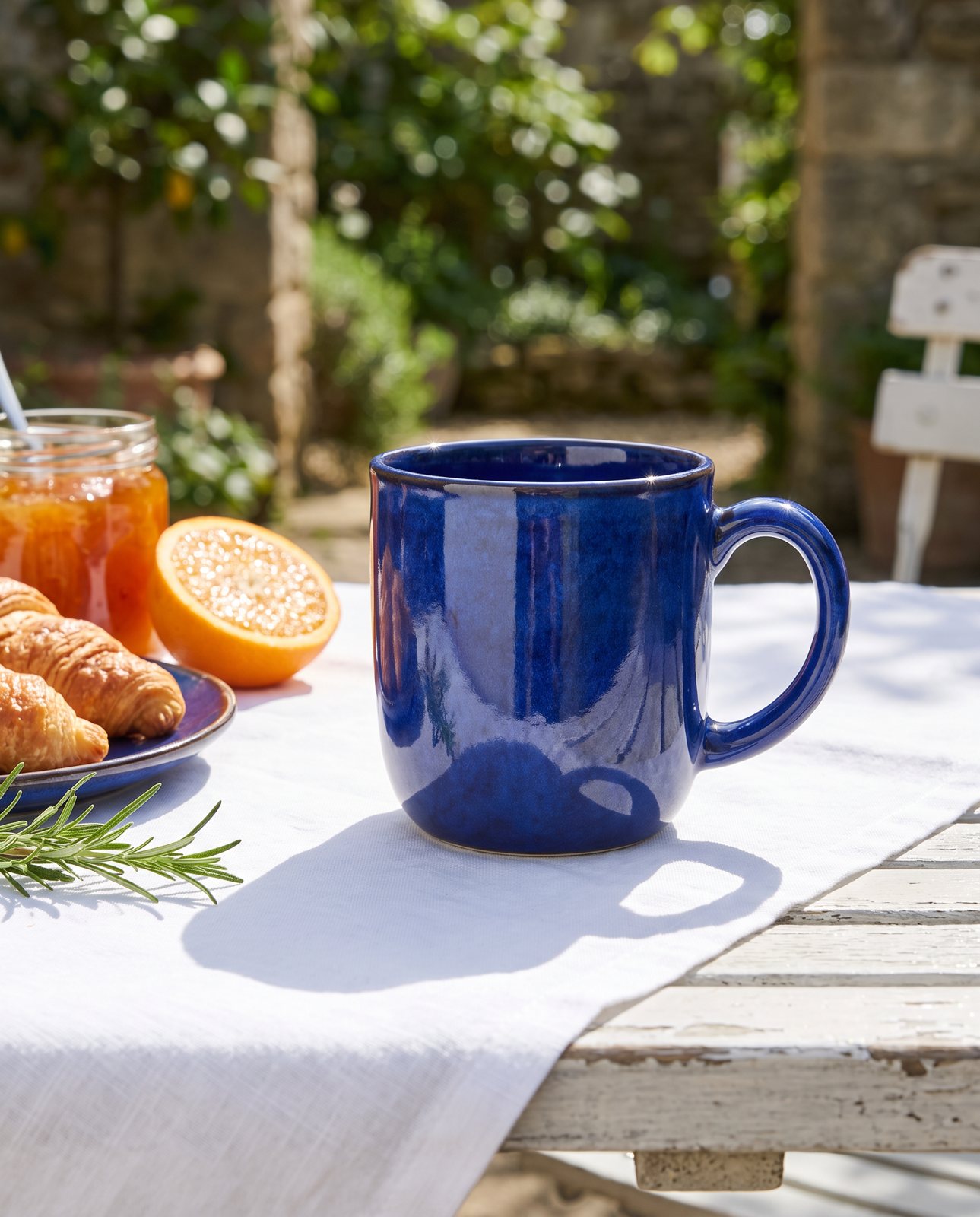
Scenes are useful in slots 8 and 9, where they show the buyer how the item might look in their home. That is what we make. You upload a photo of your product and get back a set of scenes, each checked against your original. Every shot is reimagined with AI, and the files carry standard AI-provenance labels.
Scenes do not help with condition, flaws, tags or measurements, and eBay bans photos that do not accurately represent the item. In our testing (a small sample), small printed text sometimes came out garbled, some coral and amber colours drifted, and brushed steel picked up colour from its surroundings. Compare every scene with the real thing before you list it, and keep plain photos of any label and the true colour in the gallery.
Neither eBay page says anything about AI-generated images. The help page does describe eBay's own background tool, which offers "AI-Generated backgrounds". Read the Picture policy yourself before you list.
A few practical points if you use us for eBay:
- Choose square 1:1, which matches the square size eBay recommends.
- The JPEG download is at least 2,000 px on the short side and under 1 MB, well within eBay's 12MB limit.
- Do not list the free sample shot. It carries a watermark, and eBay bans watermarks. Paid shots have none.
- Packs are 3 shots for £19, 5 for £29 or 10 for £49, or 11 to 40 shots at £4.50 each, all including VAT. A free check comes before you pay, and each delivered shot gets one free redo.
There are two things we do not do. We cannot beat a £10 lightbox and a phone at a plain white-background main photo, so take that one yourself. We also cannot shoot well-known brands' products, because the image services refuse them. You are told this before you pay.
When you do not need more photos (or us)
If you are selling a used or second-hand item, you do not need a scene. eBay's Picture policy bans stock photos for used, damaged or defective items. Its help page says not to use a catalogue photo when you list an item as used. Buyers want to see the exact item in front of you, wear included. For a second-hand jumper or an old games console, a phone and a bright window are enough. Our iPhone product photo guide shows how.
Scenes are worth adding when the item is new or handmade and a setting tells the buyer something about it. Even then, take the plain photos first. If you want a few scenes for slots 8 and 9, you can upload your photo for a free check and see what must stay the same before you pay.
Questions people ask
What is the maximum number of photos allowed in an eBay listing?
eBay UK's "Adding pictures to your listings" help page says you can add up to 24 pictures (checked 9 October 2026). Some sellers have reported a limit of 40, but the help page did not say that on the date we checked.
Why can't I add more photos to an eBay listing?
The usual reason is that you have reached the limit, which eBay's help page gives as 24. Also check each file: eBay's uploader takes images up to 12MB in JPEG, PNG, GIF, TIFF, BMP, WEBP, HEIC or AVIF format. Anything larger or in another format will not upload.
What size should eBay listing photos be?
eBay's help page gives a minimum of 500 x 500 pixels and recommends about 1600 x 1600. Its Picture policy says every listing needs at least one photo that is 500 pixels on the longest side. Each file can be up to 12MB.
Should I use a lifestyle scene as my main eBay photo?
We would not. eBay's help page says your main photo appears in search results and should show the whole item face-on. Use a plain photo for that slot and put any scenes further down the gallery. The Picture policy bans added text, borders and watermarks on any photo.
Do I need to label AI-made images on eBay?
Neither eBay page we read on 9 October 2026 has a rule on AI-generated or AI-edited images. The Picture policy does ban photos that do not accurately represent the item, so any scene must show your exact product. Read the policy yourself before you list, because it can change.