The short answer
Count the scenes. If you want to perfect one image by hand and you have the Photoshop skill and the time, use Photoshop. If you want several new scenes of the same product today, and you don't want to check every one yourself, that is the job an AI scene service does.
The overlap sits in the middle, where Photoshop's own AI tools are. So it helps to split Photoshop in two: the selection tools, which keep your real product, and Generative Fill, which makes new pixels from a text prompt.
What Photoshop does well for product images
Remove Background is an AI-powered Quick Action. Adobe's own page explains that it uses Select Subject to detect the main subject, then creates a selection and a layer mask that hides the background. Nothing about your product is redrawn. The label is your label and the colour is your colour, because they are your original pixels under a mask.
That is a real strength. You decide where the shadow falls, how the edge is refined and whether the new background suits the light in your photo. If you have the skill, you can make a cut-out look properly grounded. Adobe says it works best when the subject contrasts with the background, and that you may need a brush to clean up leftover bits around the edges.
The cost is time. Tricky products (glass, fine edges, anything see-through) need careful edge work. After that you still need a background: one you shot, sourced or built, and lit to match. The step-by-step version is in our guide to changing a product photo background.
Where Photoshop's AI stops helping a seller
Generative Fill is the part that makes something new. You select an area, type a prompt describing what you want, and Photoshop uses Adobe Firefly to generate variations on a separate layer. Adobe says a membership or free trial includes a set number of generative credits, so check your plan's allowance before you plan a dozen scenes this way.
The bigger gap is that nothing checks the result. If you select only the background, your product's pixels stay as they were. Generative Fill still does not check that the new scene suits them: light from the wrong side, a shadow that does not match, a reflection the product would really show. Photoshop has no view on any of that. You are the check, on every scene.
For one image that is fine: you look, spot the problem and fix it. Across a dozen scenes, the checking becomes the job, and attention fades well before the last one.
General AI chat tools such as ChatGPT and Gemini have a sharper version of the problem. They can restage a product, but they redraw it as they do, so labels, logos and colours can change, and nothing checks the result against your original. You ask for a nicer scene and may get a slightly different product in it.
What an AI scene service does differently, and what it does not
This is our service, so we will be plain about it: the difference worth leaning on is the check.
Every shot is reimagined with AI and labelled as such. Because AI generates the scene, the product can come out slightly changed. That is why we check each shot against your photo:
- Before you pay, we study your photo and list what must stay the same. This is free and takes about a minute.
- We compare each finished shot with your original. If a shot changes the product, we remake it with a specific fix, up to three attempts in all.
- If it is still wrong, a person checks it. We never deliver it as it is.
- You get one free redo per delivered shot.
The files carry standard AI-provenance metadata. You upload 1 to 3 photos (JPG, PNG, WebP or HEIC, up to 15 MB each). Each shot downloads as a full-size PNG and as an sRGB JPEG that is at least 2,000 px on the short side and under 1 MB.
What it does not do is give you pixel-level control of one image. You cannot nudge a shadow by hand. We also cannot shoot well-known brands' products, because image services refuse them, and we tell you before you pay. For the ways AI backgrounds tend to go wrong, see AI product backgrounds.
A worked comparison: one product, three scenes
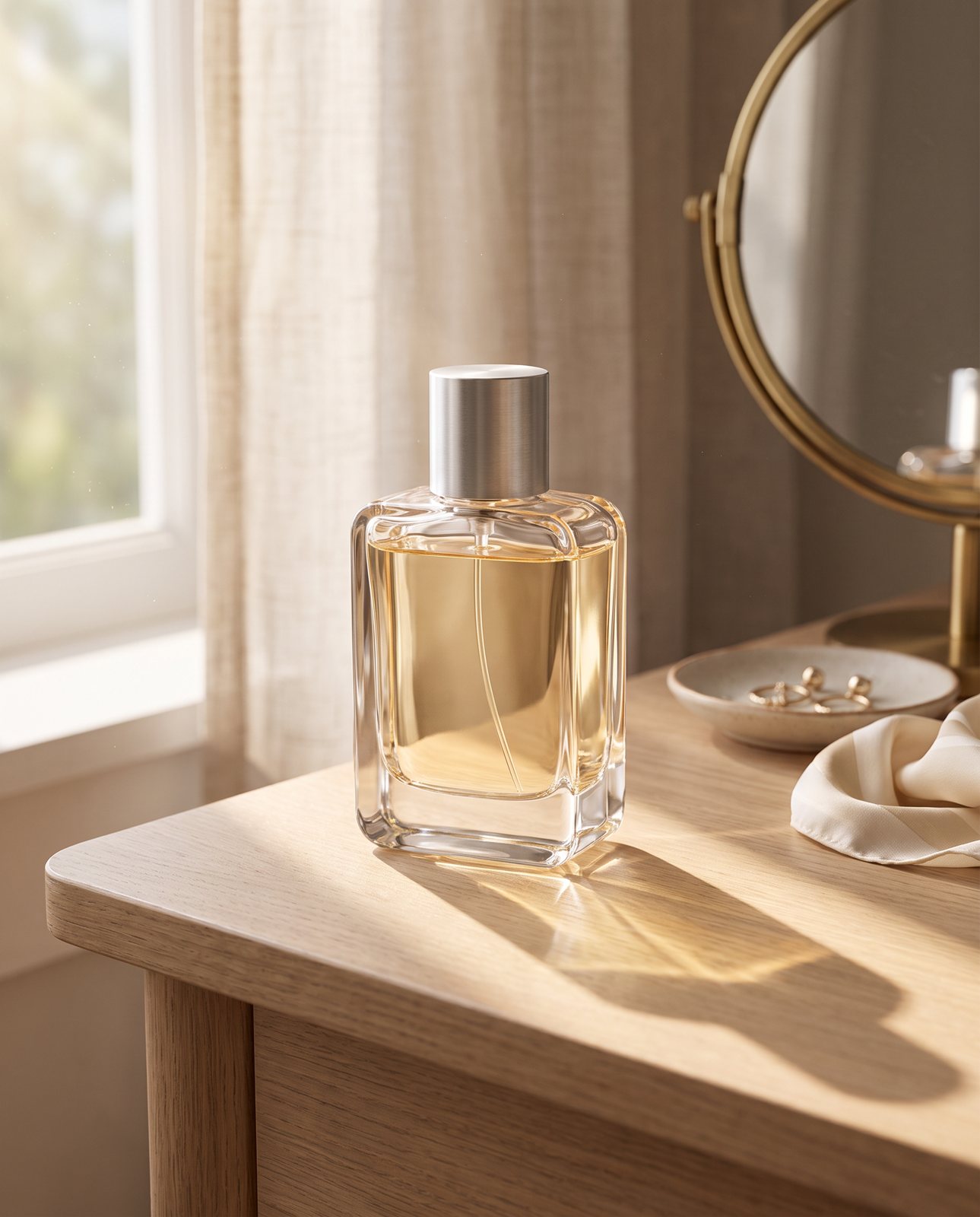
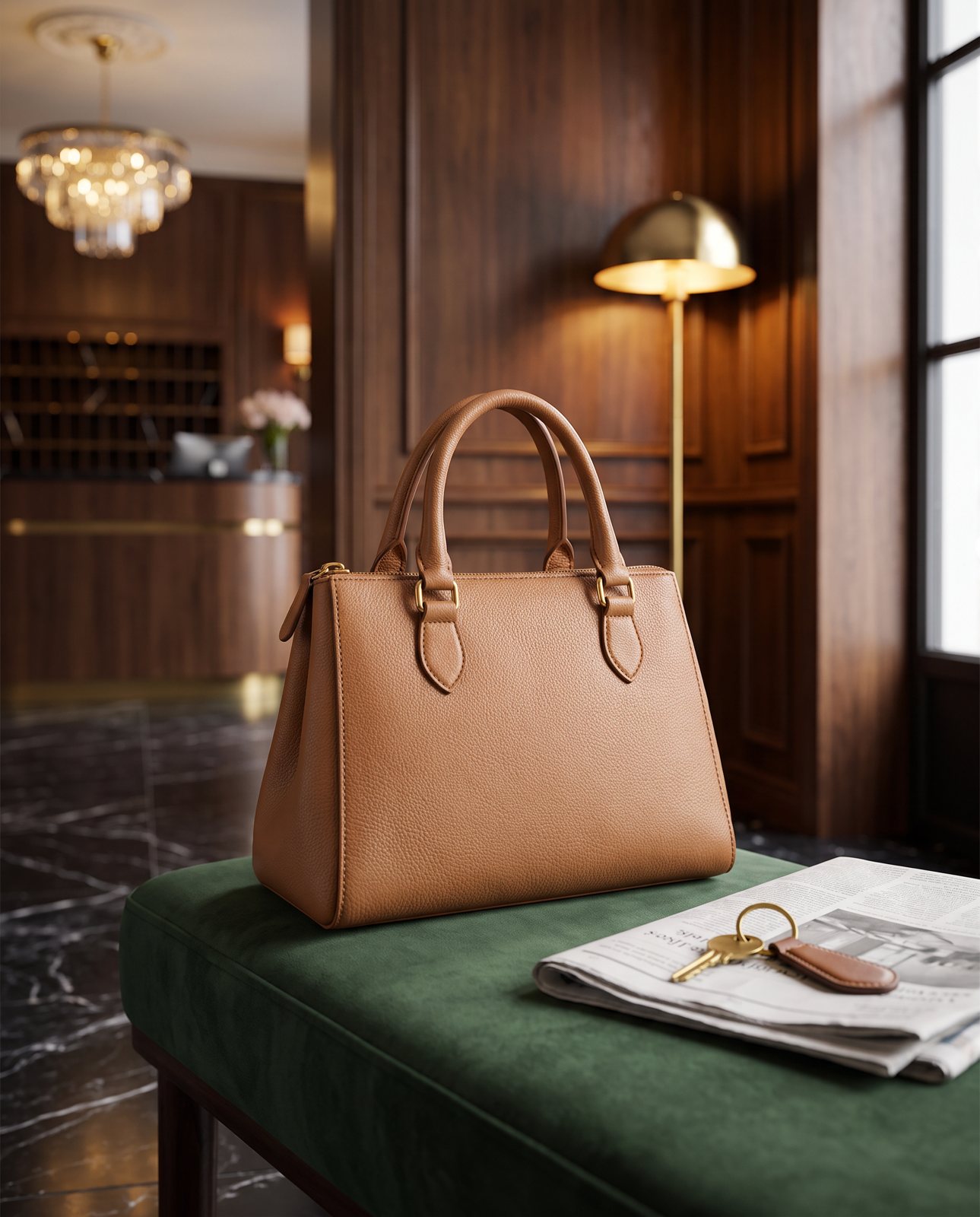
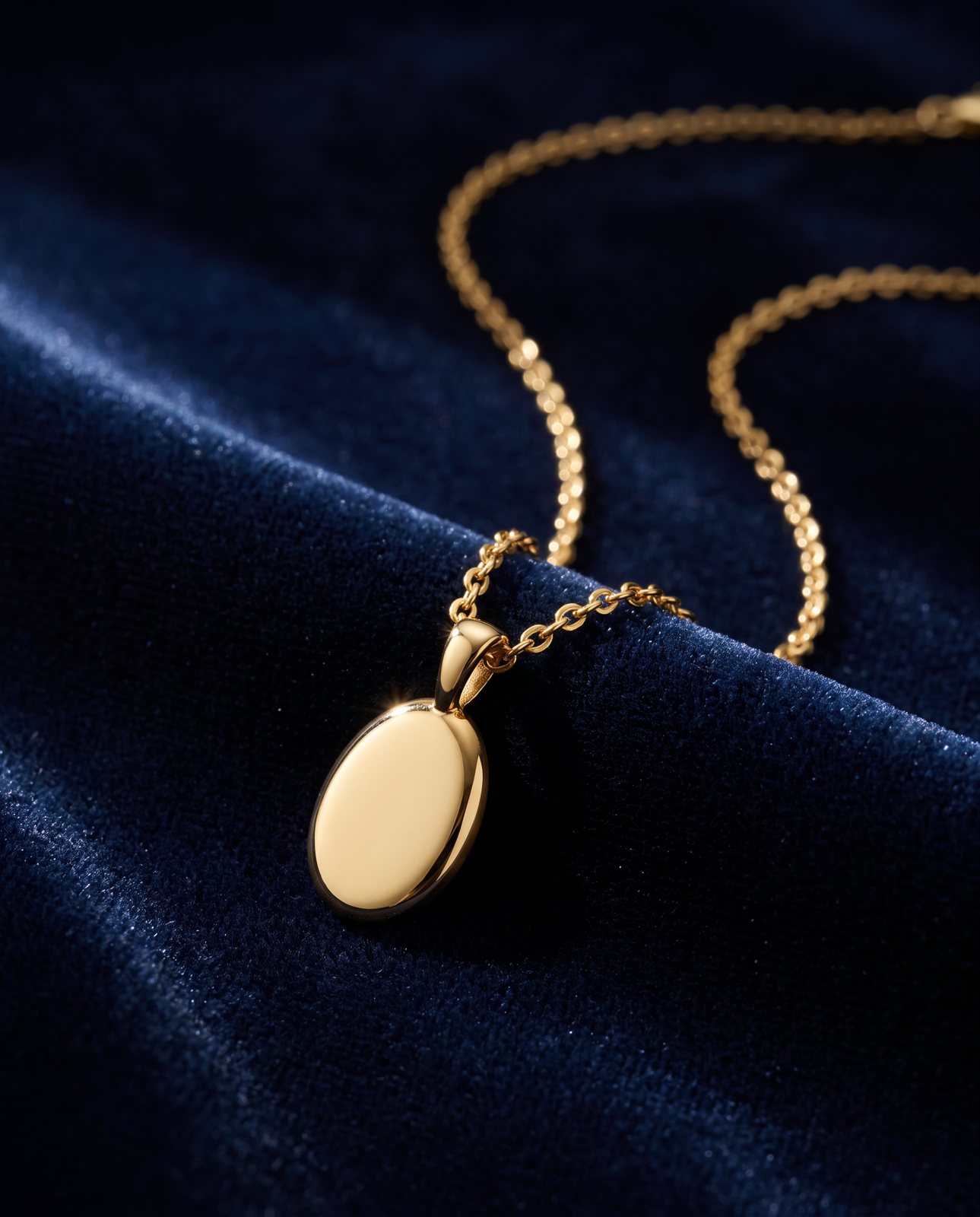
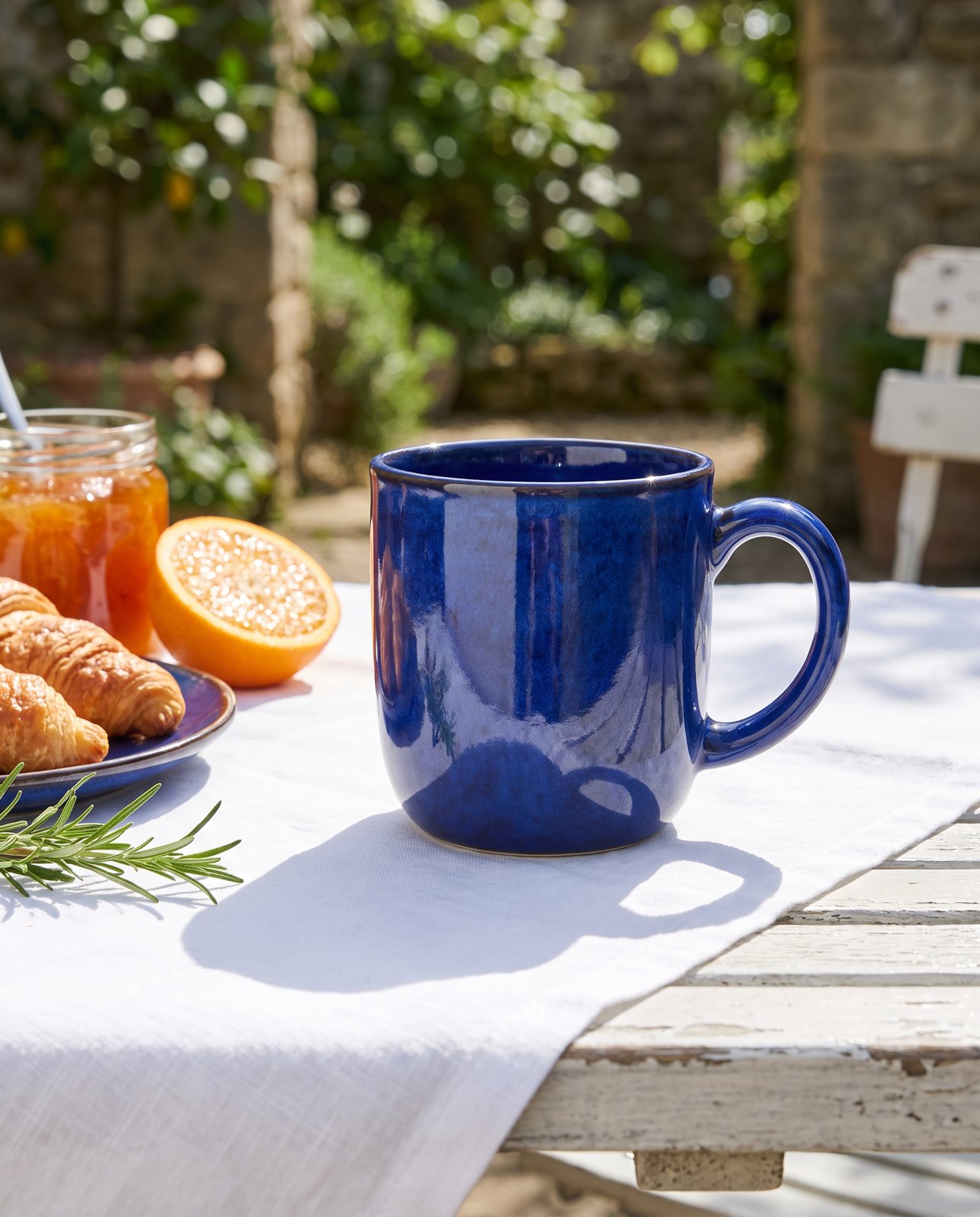
Take a pair of headphones, one of our own demo products, and three scenes: a desk, a bag and a bedside table. The examples on our home page show the kind of result.
Photoshop with selections: cut the headphones out with Remove Background, clean up the edges, find or build three backgrounds, match the light on each and paint in the shadows. With skill, you get three very good images, and it takes a good part of an evening.
Photoshop with Generative Fill: select the background, prompt for three scenes and generate variations until one looks right. Then check each one yourself for light and shadows that do not match. It is faster, but the checking is still yours, and it uses your credit allowance.
Our service: upload the photo, read the list of what must stay the same, and get three checked scenes back. In our testing, a 3-shot order took about 4 minutes. Three shots cost £19 (£6.33 a shot). Five cost £29 (£5.80 a shot), ten cost £49 (£4.90 a shot), and custom orders of 11 to 40 shots are £4.50 a shot. All prices include VAT.
Now the honest part. In our demo run on 2026-10-02 we made 30 shots (10 products, 3 scenes each). We delivered 27, and the check held back 3. Most of the headphone scenes passed on the first attempt. The trouble came from materials: the colour drifted on a coral skincare jar and on amber perfume, and brushed steel picked up its surroundings. Two steel bottle scenes failed all three attempts and were never delivered. That is the check doing its job. It is also a fair warning that tinted, shiny and metal products are the weak spot. This was a small sample, so treat it as what we saw in our testing and nothing more. There is more on colour and glass in our post on cosmetics product photography.
In a deliberately adversarial test, the check rejected a product recoloured blue and a product with a made-up logo added. It was one test, but those are the kinds of changes you want caught.
When you do not need either
- A plain white-background packshot. You need neither us nor Generative Fill. A £10 lightbox does it, and we do not beat it. Our lightbox guide covers the set-up.
- A single edit you can do yourself. Do it in Photoshop. It is one image, you have full control, and you only have your own work to check.
- A famous brand's product. We cannot shoot it, so there is no point starting with us.
If you need several scenes of your own product, each checked against your original, start with the free check.
Questions people ask
Is Photoshop's Generative Fill good enough for product photos?
For one image that you check closely, it can be. Select only the background so your product's own pixels stay as they are. Then check the light, shadows and reflections yourself, because Photoshop does not compare the result with your original.
Does Photoshop's Remove Background change my product?
No. Adobe describes it as a Quick Action that uses Select Subject to find the main subject, then hides the background with a selection and a layer mask. Your product's pixels stay as they were. You may need to clean up the edges with a brush.
Can AI change my product's colour or label by mistake?
Yes. General AI chat tools such as ChatGPT and Gemini can restage a product, but they redraw it as they do, so labels, logos and colours can change, and nothing checks the result against your original. That is why we compare every shot with your photo and remake any shot that has changed the product.
Can I tell if a product image was made with AI or edited in Photoshop?
Not always by eye. Our shots are labelled "Reimagined with AI" and the files carry standard AI-provenance metadata. A Photoshop edit that uses only selections and masks keeps your original product pixels.
Do I need to label AI product images?
That depends on where you sell, so check that marketplace's own help pages. We label every shot either way, so you never have to guess where an image came from.